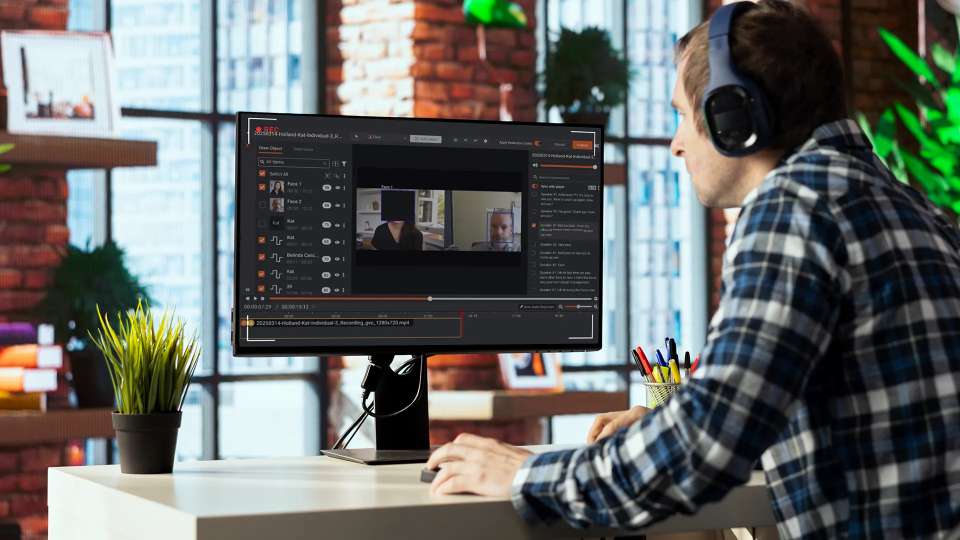
Screen recordings are the fastest way to show someone how your product works. But they also capture everything on screen at the time of recording: client names in the top navigation, account numbers in a dashboard widget, email addresses in a dropdown, document text in a side panel. Most of that data belongs to someone else.
The problem with screen recordings is that the sensitive content is text, not faces or license plates. Most redaction tools are built for law enforcement video. They are excellent at blurring faces and vehicles. They are not built to read UI fields, detect formatted identifiers, or handle fast-scrolling application interfaces. That gap is where confidential data slips through.
This guide covers how to redact confidential text from screen recordings step by step, using OCR-based detection that actually reads what is on screen.
Why Screen Recordings Expose More Than You Expect
When you record a product walkthrough, you are typically focused on the workflow you are demonstrating. The data behind the workflow is background noise. But to anyone watching the recording afterward, that data is visible and readable.
The most common categories of confidential text that appear in screen recordings:
UI fields and form data: Input fields showing real names, addresses, phone numbers, or email addresses. These appear in CRM screens, onboarding flows, support ticket interfaces, and any form-heavy application.
Dashboard values: Numeric data in analytics, financial, or operations dashboards. Revenue figures, account balances, transaction totals, and KPIs are frequently visible in product walkthroughs.
Document overlays: PDFs, spreadsheets, or reports opened in the background or pulled up during a walkthrough. These can contain entire rows of client records. This challenge is covered in more detail in Document and Screen Redaction in Video, which walks through how document content embedded in recordings creates its own category of exposure risk.
Client identifiers: Account numbers, case IDs, parcel numbers, order numbers, and reference codes that follow predictable formats but are specific to individual clients.
Navigation elements: The URL bar, open tabs, and window titles often reveal client-specific subdomains, account IDs embedded in URLs, or client names in tab labels.
None of this requires a compliance program to be a problem. Sharing a recording that shows a client's data with a third party, publishing it on a website, or storing it in an unsecured location is a confidentiality issue regardless of the regulatory context.
Why Video Editors Are Not the Answer
The first workaround most teams reach for is the video editor. Blur a region in Premiere Pro, add a black box in iMovie, or use a screen annotation tool to cover sensitive areas. For a single short clip, this works. As a workflow, it fails quickly.
Video editors require manual frame-by-frame review. Text that appears for two seconds during a scroll is easy to miss. A single recording can have dozens of moments where client data appears, each requiring a separate edit. When the recording is 30 minutes long and you have ten of them, the editing backlog becomes a bottleneck.
The more important limitation is consistency. Manual editing depends on the reviewer noticing the sensitive content. OCR-based redaction detects it regardless of whether the reviewer was paying attention to that frame.
If your team is managing multiple recordings at once, batch video redaction is a practical way to standardize redaction across all of them without multiplying the manual workload.
What OCR-Based Text Detection Does in Video
OCR stands for Optical Character Recognition. In the context of screen recording redaction, it reads text that appears in video frames the same way it reads text in a scanned document. It processes each frame, identifies characters, forms words, and matches them against detection patterns.
The advantage over manual editing is systematic coverage. OCR does not miss text because the reviewer was focused on something else. It processes every frame and returns every text string it identifies, along with a confidence score for each detection.
For screen recordings specifically, OCR detection handles:
- Typed text in input fields as a user fills them in
- Static text labels that persist across many frames
- Text that appears briefly during a transition or scroll
- Document text visible in overlaid panels or opened files
- Formatted identifiers like account codes, reference numbers, and postal codes
VIDIZMO Redactor's video redaction software is built on this OCR foundation, designed specifically to handle the fast-moving, UI-heavy content that appears in product recordings and walkthroughs.
Three Ways to Redact Text in a Screen Recording
VIDIZMO Redactor offers three modes depending on how much automation fits your workflow.
Fully automated redaction works best for recurring recording types with consistent data patterns. You configure a redaction template with the PII types and custom patterns relevant to your application, submit the recording, and receive a redacted output. No manual review required. This is the right choice for teams processing high volumes of walkthroughs, demos, or training recordings on a regular basis.
Semi-automated redaction runs AI detection and returns suggested redactions for human review before finalizing. The reviewer sees what the OCR engine found, accepts or rejects each suggestion, and adds any manual redactions before exporting. This mode gives teams confidence without losing control.
Manual redaction with AI detection lets the reviewer use AI-identified text as a starting point while drawing additional redaction regions by hand. It is useful when the recording contains content that needs judgment calls, such as text that is sensitive in context but not a standard PII type.
You can explore the full feature set across all three modes on the VIDIZMO Redactor features page.
Custom Patterns and Excluded Words
Not all sensitive text is a name, phone number, or email address. Many applications use formatted identifiers that are specific to the organization: parcel numbers, policy reference codes, internal account IDs, or client-specific codes. Standard PII models do not know what these look like.
Custom regex patterns let you define the exact format of identifiers you need to redact. If your application displays account codes in the format ACCT-XXXXXX, a regex pattern captures every instance of that format across the entire recording. This is significantly more reliable than hoping a reviewer spots each occurrence manually.
The same pattern-based approach applies to financial documents. The blog on redacting invoices and vendor payment documents explains how custom patterns handle structured identifiers in finance workflows, and the same logic extends directly to screen recordings that surface financial data.
Excluded words work in the opposite direction. If a specific term appears in your interface that is not sensitive but looks like it might be, you can instruct the redaction engine to ignore it. This reduces false positives and avoids unnecessary redactions that affect the clarity of the recording.
Step-by-Step Workflow
Here is what a complete screen recording redaction workflow looks like in VIDIZMO Redactor:
- Upload the recording: individually or in bulk via the desktop app's watch folder
- Select a redaction template or configure detection settings for the recording type
- Run AI text detection: OCR processes every frame and returns detected text with confidence scores
- Review detections: in semi-automated mode, review suggestions in the split-screen view before applying
- Apply manual additions if any text was missed or if specific regions need to be covered
- Export the redacted file: a separate output copy is generated; the original is preserved unmodified
The original recording is never altered. The redacted version is a clean output copy ready for sharing, publishing, or archiving.
Ready to clean up your screen recordings before they go out? Start your free trial and run your first recording through the redaction pipeline today.

Who Needs This Workflow
This workflow applies to any team that records real product environments for external use:
- SaaS product teams recording walkthroughs in production or staging environments with real customer data
- Fintech and payments companies where dashboards show account numbers, balances, and transaction data. The finance redaction use case covers the specific compliance considerations for this sector.
- Proptech firms where recordings show property databases, parcel identifiers, and owner information
- Legal tech companies where case management interfaces display client names and case references. Legal redaction software is designed for exactly these environments.
- HR tech teams where recordings capture employee records, compensation data, or personal details
- Any B2B SaaS where demos are recorded live in customer environments before the recording is sanitized
The recording does not need to be regulated content for the redaction to be necessary. Confidentiality obligations to clients exist independent of compliance frameworks.
Key Takeaways
- Screen recordings routinely capture confidential text in UI fields, dashboards, documents, and navigation elements
- Manual editing in video software is inconsistent and does not scale beyond a handful of recordings
- OCR-based detection reads every frame systematically and identifies text that manual review misses
- Custom regex patterns cover formatted identifiers specific to your application that standard PII models do not detect
- Three redaction modes let teams choose between full automation, human review, or manual control
- The original recording is always preserved; only the exported copy is redacted
FAQ
Frequently Asked Questions
How do I remove sensitive text from a screen recording?
Use OCR-based video redaction software. It processes every frame, detects text using character recognition and pattern matching, and applies redactions automatically. VIDIZMO Redactor supports automated, semi-automated, and manual redaction modes for screen recordings.
Can OCR detect text in video files?
Yes. OCR in video works frame by frame, reading text that appears in each frame the same way it reads a scanned document. It detects static text, typed input as it appears, and brief text that shows during transitions or scrolls.
What types of sensitive text appear in screen recordings?
Common types include client names in CRM interfaces, account numbers in dashboards, email addresses in form fields, document text in opened files, and formatted identifiers like account codes, case IDs, and reference numbers.
Is video redaction different from blurring in a video editor?
Yes. Video editor blurring requires manual identification of each sensitive region frame by frame. OCR-based redaction detects text automatically across all frames, which is faster, more consistent, and less likely to miss brief appearances of sensitive content.
Can I redact custom identifiers like account codes or parcel numbers?
Yes. VIDIZMO Redactor supports custom regex patterns that match formatted identifiers specific to your application. You define the pattern once and the engine detects every instance across the entire recording.
TopicsRedaction

About the author
Ali Rind is a Product Marketing Executive at VIDIZMO, where he focuses on digital evidence management, AI redaction, and enterprise video technology. He closely follows how law enforcement agencies, public safety organizations, and government bodies manage and act on video evidence, translating those insights into clear, practical content. Ali writes across Digital Evidence Management System, Redactor, and Intelligence Hub products, covering everything from compliance challenges to real-world deployment across federal, state, and commercial markets.
You may also like
Video Redaction Best Practices: Motion, Frame Rates, Tracking and Failing Safe
I led our video redaction project for a county public safety agency where two people handled every disclosure, and ...
Redacting Dash Cam, Body Cam and Drone Footage From a Moving Camera
A fleet claims manager preparing crash footage for an insurer and defense counsel is doing a different job from a ...

Why Frame-Rate Headers Lie: Redacting Variable Frame Rate Video
A video file keeps time frame by frame, and the frames-per-second figure a player displays is a summary of that timing, ...