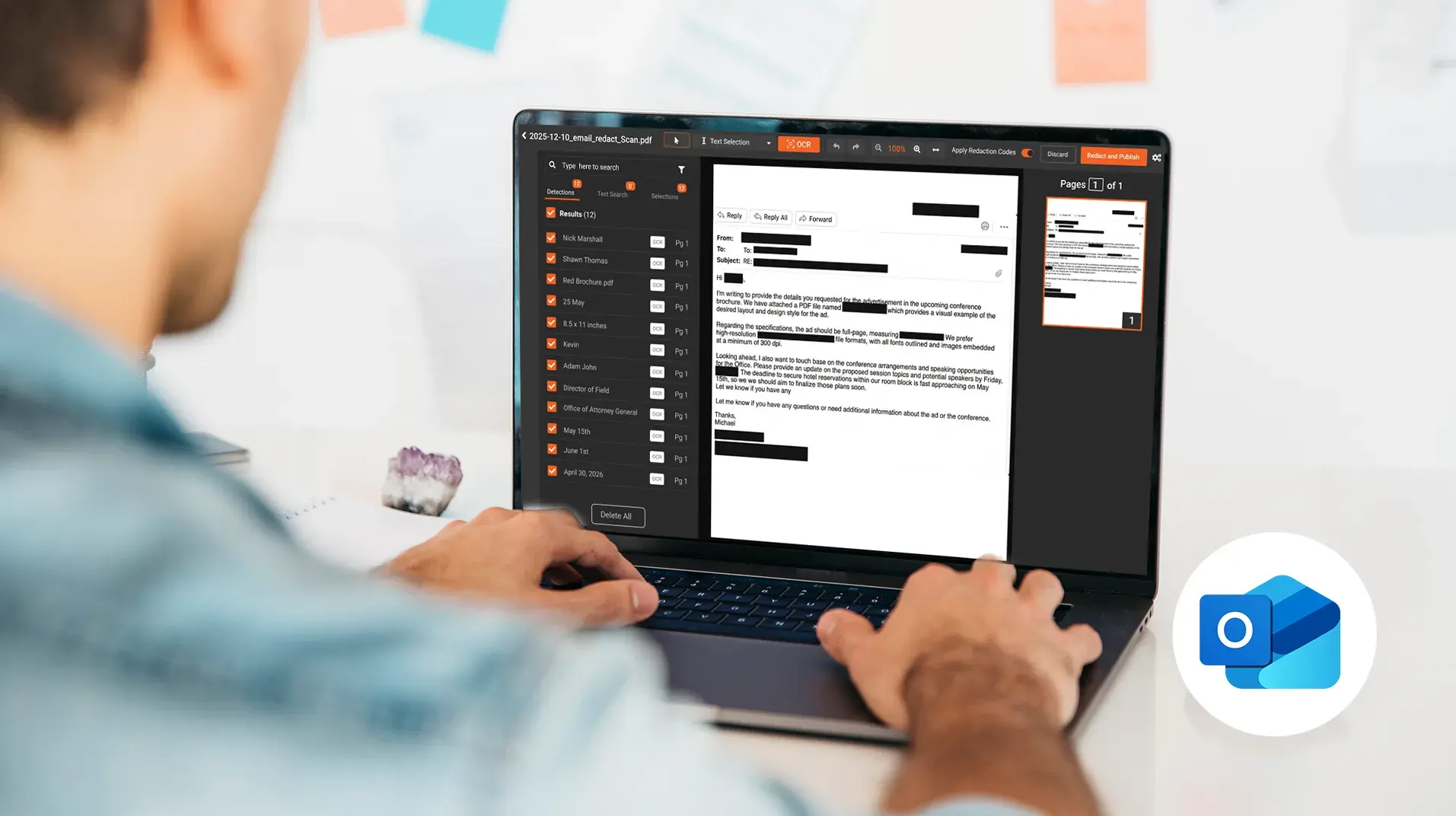
Can You Redact an Email in Outlook? Short answer: no. Outlook has no redaction feature. Microsoft did not build one into Outlook, and the things people try as substitutes either do not work or work in ways that do not produce a redacted file. The workflow that actually produces a defensibly redacted email is to export the message from Outlook, redact the exported file in a tool built for redaction, and share the redacted version.
This post covers the four things people try inside Outlook, why each one fails, and what the export-and-redact workflow looks like. It is short on purpose. If you arrived here looking for a hidden Outlook setting that does redaction, the honest answer is in the first paragraph.
Four Ways People Try to Redact in Outlook (and Why They Fail)
Most attempts to redact an Outlook email fall into one of four patterns. None of them produce a redacted file.
Recall
Outlook's message recall lets the sender attempt to retract a sent message from recipients' inboxes. The feature works only between accounts in the same Microsoft 365 organization, is unavailable for POP and MAPI accounts, and depends on recipient client behavior. Classic recall fails when the recipient has already read the message; Microsoft's newer cloud-based recall can remove read messages in some tenant configurations, but that depends entirely on admin settings outside the sender's control. Either way, recall is not redaction. It is an attempt to make a message disappear. If the sensitive content has already been copied, forwarded, downloaded, or archived, recall does nothing about that exposure.
Edit or delete after send
Some newer Outlook clients allow the sender to edit or delete a sent message. The edit and the deletion only affect the sender's copy in their own mailbox. The original message in the recipient's mailbox, in any archive, and in any backup is unchanged. The sender sees what looks like a redacted view in their own Sent Items folder. The recipient and any archive still hold the original. This is the most dangerous pattern because the sender genuinely believes the message has been redacted when nothing about the exposure has changed.
Sensitivity labels (Microsoft Purview)
Sensitivity labels classify a message (Confidential, Highly Confidential, and so on) and can apply encryption, watermarking, or access restrictions. They do not modify the content of the message. A labeled email is still readable by the recipients it was sent to, with all original content intact. Sensitivity labels are a useful information protection control, but they are not a redaction tool. Applying a label to a message that already contains exposed PII does not remove the PII; it just classifies the message that contains it.
Black-out in a PDF export
Some teams export the email to PDF, open the PDF in Adobe Reader or Acrobat, draw black boxes over the sensitive text, and save. If the black boxes are drawn as comments or markup rather than through the dedicated redaction tool, the underlying text remains in the file. A recipient who copies the text from the redacted PDF recovers the original content. The American Bar Association has documented exactly this failure in federal court: in the 2019 Manafort filing, black boxes drawn over searchable text were defeated with copy and paste, exposing the supposedly sealed content within hours.
Recall vs. Redaction: Two Different Operations
The conflation between recall and redaction shows up in search behavior often enough that it is worth handling separately. Recall tries to make a message unread. Redaction modifies the content of the file so the sensitive portions are no longer present. These are different operations with different success conditions.
Recall succeeds under a narrow set of conditions: sender and recipient in the same Microsoft 365 tenant with compatible configurations, and no forwarding, downloading, or archiving in the meantime. Redaction is independent of recipient behavior. The redacted file is what it is, regardless of whether the original was already read, forwarded, or archived.
When the goal is to share an email with a third party (a regulator, a discovery response, a partner organization) with specific content removed, recall is irrelevant. The work is redaction, and Outlook does not do it.
How to Redact an Outlook Email: The Workflow That Works
The defensible workflow has three steps. Export the email from Outlook in a format that supports redaction. Redact the exported file in a tool built for the purpose. Share the redacted file.
Export typically means saving the message as PDF (File menu, then Save As PDF in desktop Outlook, or Print to PDF in any version). For full thread context, save the entire thread rather than the most recent message. If the email has attachments and the attachments need to travel with the redacted message, save those alongside in their original format.
Redaction runs against the exported PDF (and any attachments) in a dedicated tool. The tool finds the sensitive content (names, account numbers, dates of birth, addresses, medical information, or whatever the use case requires), permanently removes it from the file rather than overlaying it visually, and produces a redacted output. A defensible tool logs every redaction action with operator, timestamp, and basis for the redaction.
Sharing is the third step. The redacted output is delivered to the requesting party through whatever channel the request specified (email reply, secure portal, file transfer). The original Outlook message stays in the mailbox under normal access controls; the redacted copy is the artifact delivered.
Redacting Outlook Exports with VIDIZMO Redactor
VIDIZMO Redactor handles the redaction step in the export workflow. Once the Outlook message is exported to PDF, the platform ingests the file, runs AI detection across PII categories including names, account numbers, dates of birth, addresses, financial identifiers, and medical record numbers, and produces a redacted output with permanent content removal. OCR handles scanned content if any of the attachments are image PDFs. Bulk processing handles multi-file productions where multiple emails or threads need redacting together. Audit logs record every redaction action.
For email-specific depth including thread anatomy, attachment handling, and regulatory framing, see the email redaction use case. For how detection and permanent removal work across document types generally, see our guide to AI-powered document redaction.
Outlook gets the email out of the mailbox. VIDIZMO Redactor does the rest. Upload an exported thread and see what the AI detects.

FAQ
Frequently Asked Questions
Can you redact an email in Outlook?
No. Outlook has no built-in redaction feature in any version, including classic Outlook, new Outlook, and Outlook on the web. Recall, edit-after-send, and sensitivity labels do not remove content from a sent email. To redact an email, export it from Outlook as a PDF and process it in dedicated redaction software.
Does recalling an email in Outlook remove sensitive data?
No. Recall attempts to retract a message from recipient inboxes and only works under narrow Microsoft 365 conditions. It does not modify the content of any file, and it cannot undo exposure if the message was already forwarded, downloaded, or archived. Recall and redaction are different operations.
How do I redact an email thread in Outlook?
Export the full conversation from Outlook to PDF using Save As PDF or Print to PDF. Run the exported file through redaction software that permanently removes the flagged text, review the detections, and share the redacted output. The original thread remains untouched in your mailbox.
How do I black out text in an Outlook email?
Drawing black boxes over text in a PDF export is not redaction. The underlying text stays in the file and can be copied or extracted, which is how the 2019 Manafort court filing was exposed. Use redaction software that deletes the text from the file rather than covering it visually.
Do Microsoft Purview sensitivity labels redact emails?
No. Sensitivity labels classify and protect messages with encryption, watermarks, or access restrictions, but the email content stays fully intact and readable for authorized recipients. Labels prevent future mishandling; they do not remove PII that an email already contains.
What is the best way to redact emails in bulk from Outlook?
Export the messages as PDFs (individually or via your archive or eDiscovery system) and process them through AI redaction software with bulk upload. Detection rules apply consistently across every file, which manual black-out methods cannot guarantee at volume.
TopicsRedaction

About the author
Ali Rind is a Product Marketing Executive at VIDIZMO, where he focuses on digital evidence management, AI redaction, and enterprise video technology. He closely follows how law enforcement agencies, public safety organizations, and government bodies manage and act on video evidence, translating those insights into clear, practical content. Ali writes across Digital Evidence Management System, Redactor, and Intelligence Hub products, covering everything from compliance challenges to real-world deployment across federal, state, and commercial markets.
You may also like

Video Redaction Best Practices: Motion, Frame Rates, Tracking and Failing Safe
I led our video redaction project for a county public safety agency where two people handled every disclosure, and ...
Redacting Dash Cam, Body Cam and Drone Footage From a Moving Camera
A fleet claims manager preparing crash footage for an insurer and defense counsel is doing a different job from a ...

Why Frame-Rate Headers Lie: Redacting Variable Frame Rate Video
A video file keeps time frame by frame, and the frames-per-second figure a player displays is a summary of that timing, ...